Task Management
A professional schedule is built on a foundation of accurate task data. In MSP Planner, you can mix real Jira issues with "schedule-only" tasks to create a complete picture of your project.
Advanced Selection & Manipulation
To enable high-velocity planning, MSP Planner provides a professional selection model that distinguishes between Row Selection and Cell Selection.
1. Row Selection (The Triple-Dot)
Click the triple-dot symbol at the beginning of any line to select the entire row.
- Multi-Select: Use
Shift + Clickto select a range of rows, orCtrl/Cmd + Clickto select individual tasks. - The Power of Row Copy/Paste: When you have rows selected, using Copy/Paste will duplicate the entire task, including its dependencies and resource assignments.
2. Cell Selection
Click anywhere within a cell to select just that field.
- Cell Copy/Paste: Selecting only the cells allows you to copy specific values (like a deadline or a resource) across multiple tasks without duplicating the tasks themselves.
3. Drag-and-Drop Reordering
You can rearrange your project structure by simply clicking and dragging a row. This allows you to quickly re-organize your task hierarchy and group related activities together.
The Gantt Experience: Mouse-Driven Planning
The Gantt chart is an interactive workspace, not just a visualization.
- Extending Tasks: Hover over the edge of a task bar and drag to extend or shrink its duration.
- Moving Tasks: Click and drag the center of a task bar to move its start and finish dates while maintaining its duration.
- Rapid Alignment: Use the mouse to snap tasks to milestones or align them with other dependencies.
Linking to Jira
The core strength of MSP Planner is the ability to connect a professional schedule to real-world execution.
How to Link a Task
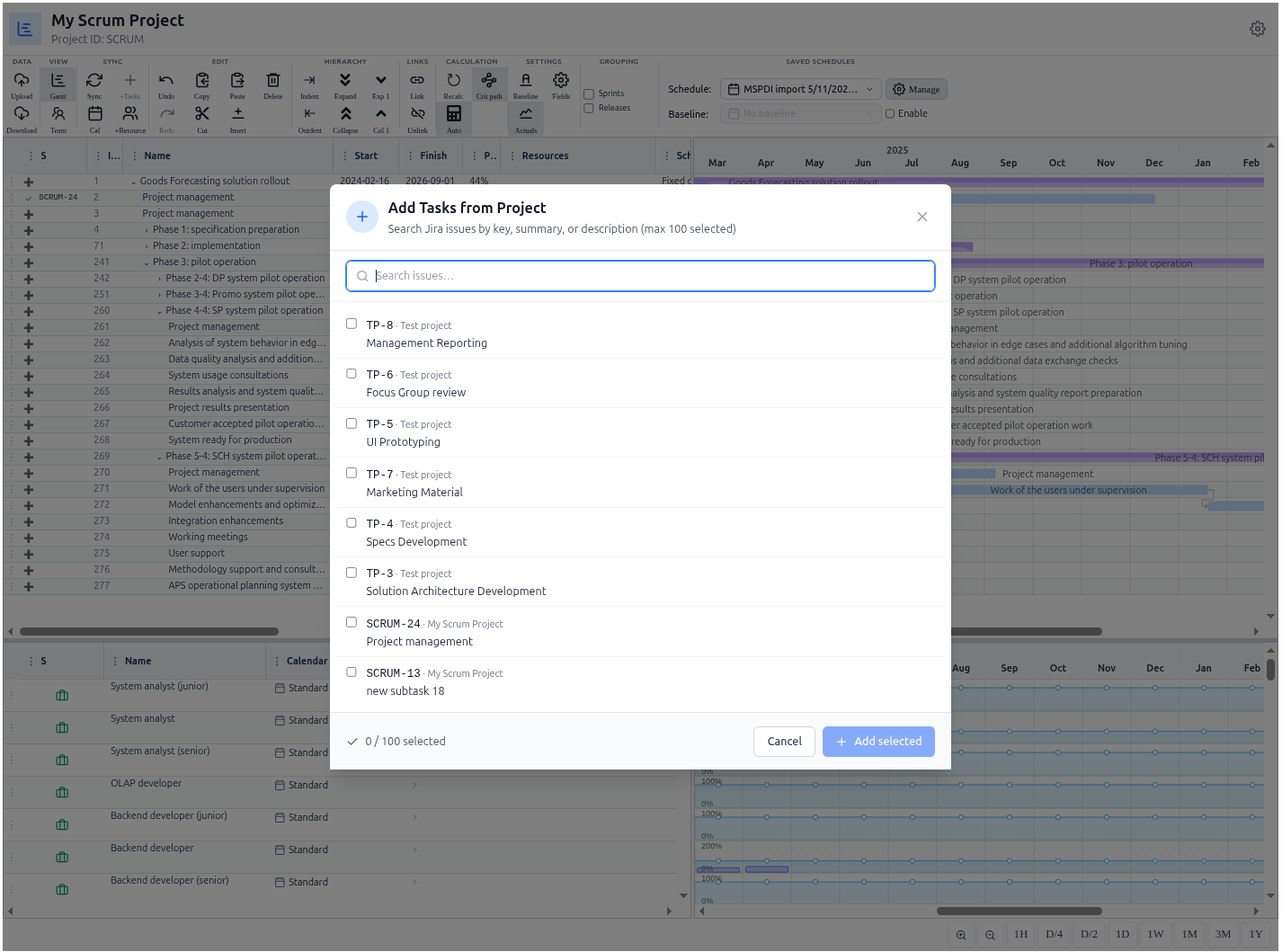
- Use the Add Tasks control in the toolbar to open the Jira task picker.
- Search for and select the Jira issues you want to include in your schedule.
- These tasks are now "Linked." They carry the identity of the Jira issue but allow you to apply professional scheduling semantics (like baselines and fixed units) that don't exist in Jira.
The Synchronization Boundary
Remember that synchronization is explicit. When you change a date in the timeline, it does not immediately overwrite the Jira issue. You must use the Synchronize toolbar to review and "Push" changes to Jira, ensuring that the team's daily work is not disrupted by planning experiments.