Interface Guide
MSP Planner is designed for high-velocity planning. Instead of digging through menus, the workspace provides a split-pane environment where the top and bottom views are intelligently linked.
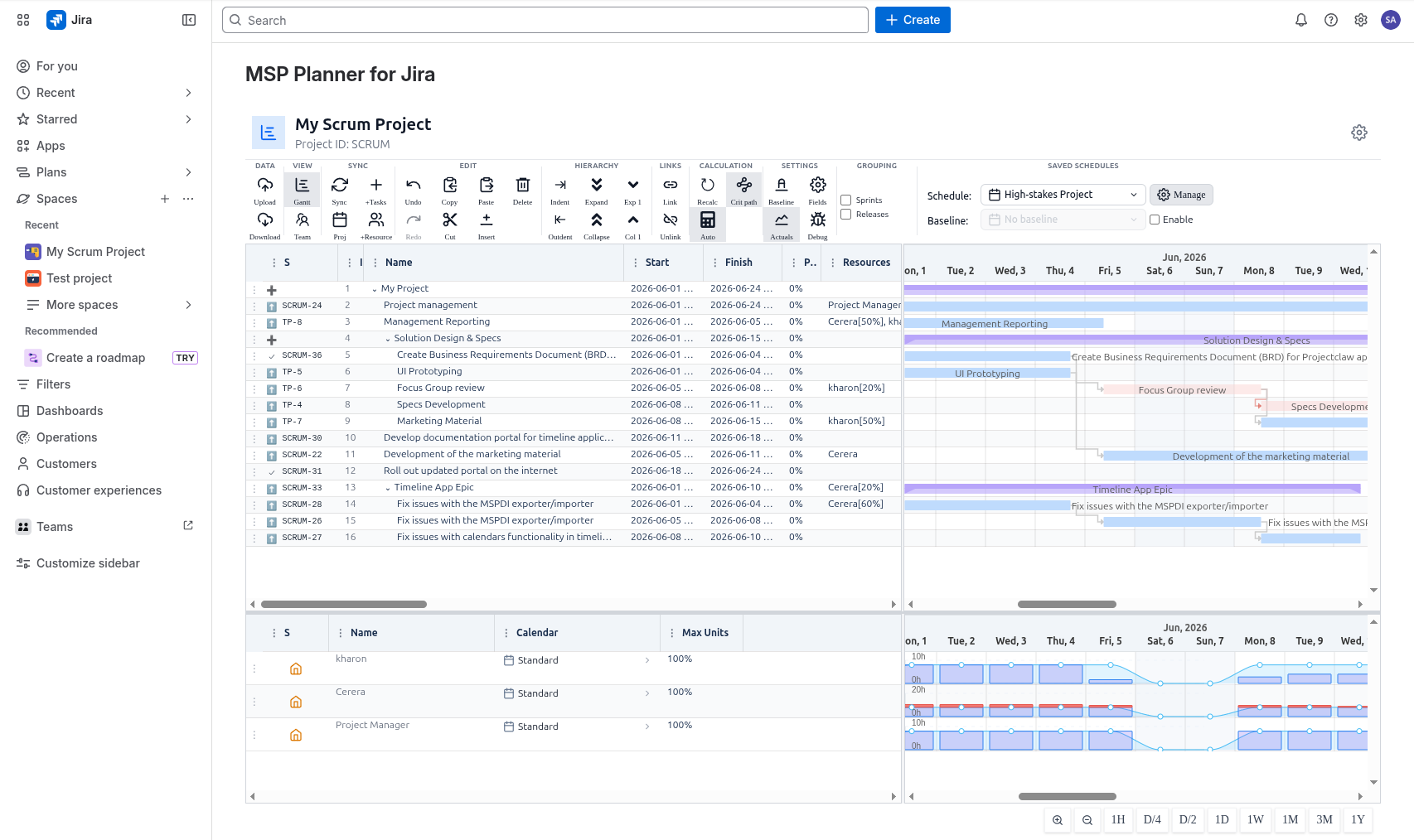
The Split-Pane Intelligence
The workspace is divided into two primary panes: the Timeline (Top) and the Resource View (Bottom). These panes are not just separate views; they are bi-directionally filtered.
1. Top - Bottom Filtering
When you select one or more tasks in the Timeline (top pane), the Resource View (bottom pane) automatically filters to show only the resources allocated to those specific tasks. This allows you to instantly see who is working on the critical path without searching through your entire organization.
2. Bottom - Top Filtering (Team Mode)
By switching the resource view to Team Mode, you can select specific resources or teams. The Timeline (top pane) will then filter to show only the tasks assigned to those selected resources. This is invaluable for conducting resource reviews or checking a specific person's load.
The Toolbar Masterclass
The top menu contains the primary controls for shaping your project.
Structural Controls
- Indent / Outdent: Quickly build your task hierarchy. Indenting a task makes it a sub-task of the row above it.
- Link / Break: Create dependencies between tasks. Linking two tasks ensures that the second cannot start until the first is finished (or as defined by the dependency type).
- Expand / Collapse: Toggle the visibility of sub-task trees to focus on high-level milestones or dive into granular details.
Analysis & View Toggles
- Baseline Toggle: Overlay your original commitment (Baseline) against the current live schedule to visualize drift.
- Actuals Toggle: Show posted Jira worklogs as "Actual Work" bars on the timeline.
- Grouping Toggles: Group your tasks by Sprint or Release to align your professional schedule with your agile delivery cycles.
Navigation & High-Efficiency Controls
To maintain a professional flow, MSP Planner supports advanced navigation:
- Split-Pane Sync: Scrolling the table in the top pane automatically scrolls the Gantt chart, and vice versa.
- Keyboard-First Editing: Use full keyboard support for copy, paste, cut, delete, and indent/outdent operations to build schedules at the speed of thought.
- Explicit Synchronization: Use the synchronization toolbar to manually "Push" schedule updates to Jira or "Pull" host changes into your plan, ensuring you never lose control of your planning data.