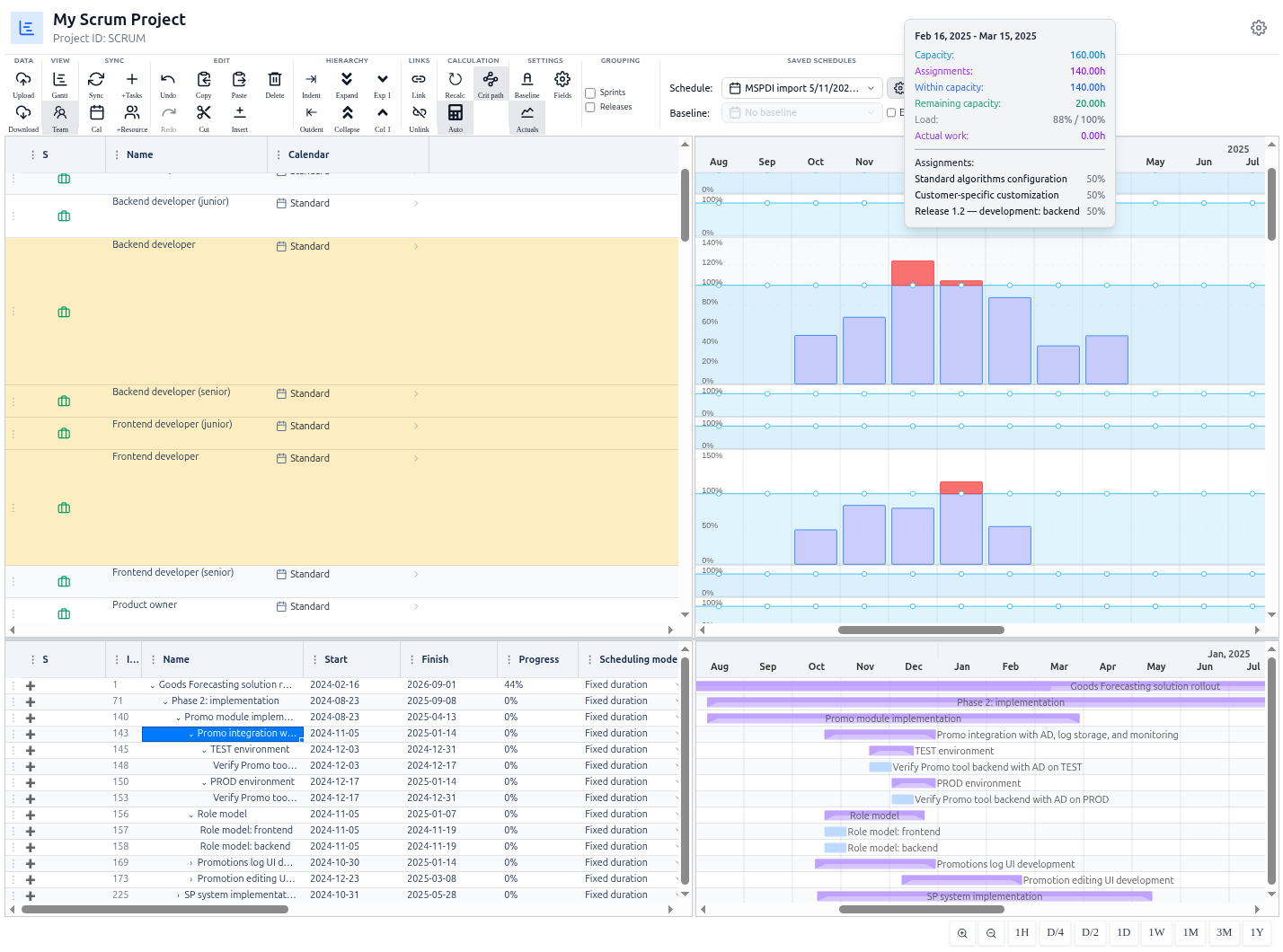
Resource Management
A realistic schedule depends on knowing exactly who is available and when. MSP Planner provides a professional resource management system that distinguishes between organizational directory resources and local project resources.
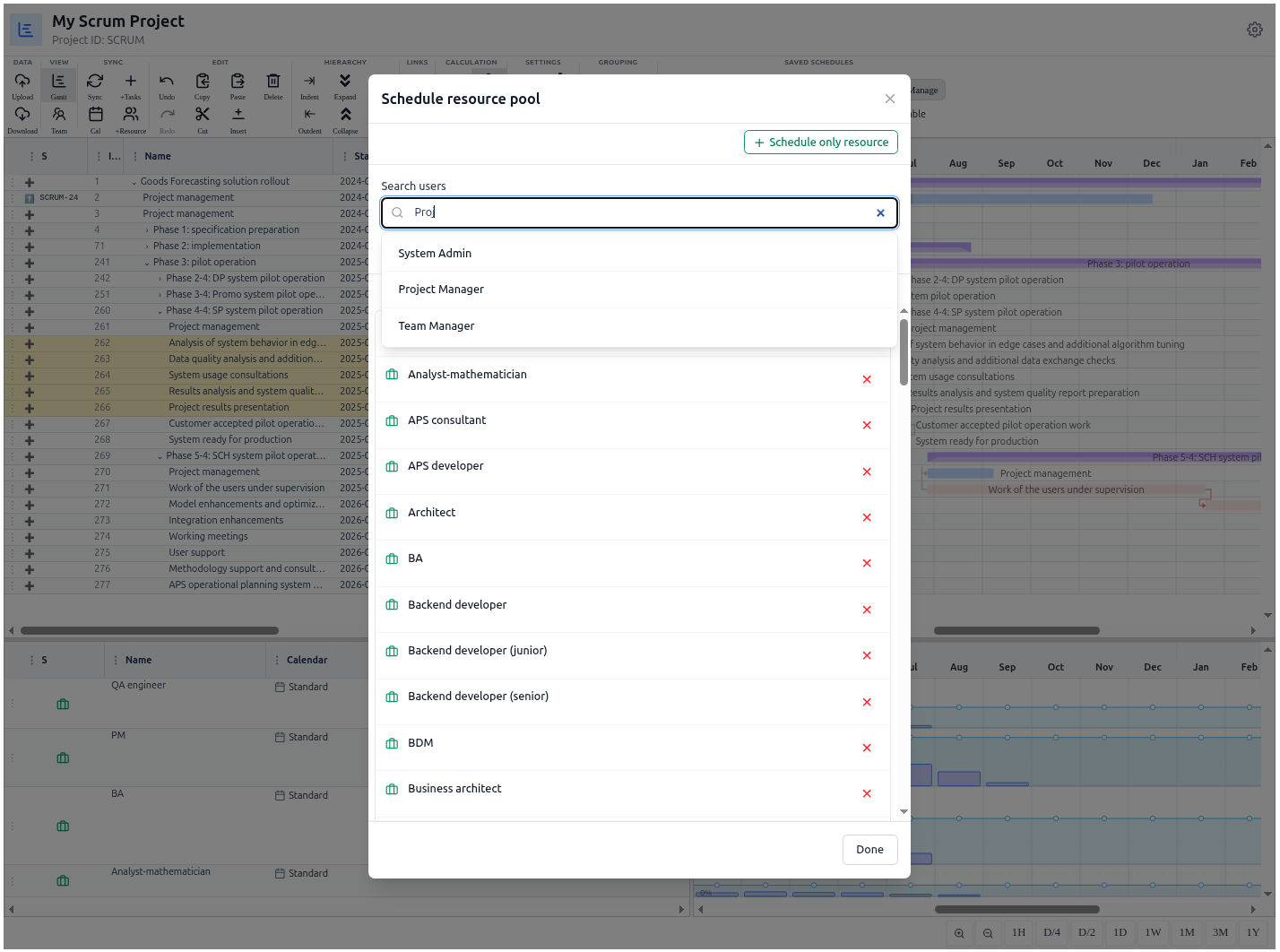
The Resource Pool: System vs. Project
MSP Planner recognizes that not every resource on a project comes from the same place. To handle this, the app uses two distinct resource types:
1. System (Corporate) Resources
These are resources linked to your organization's directory or the Jira user database.
- Identity: They carry a stable platform identity (e.g., Jira
accountId). - Governance: Their master data (Name, Email) is read-only in the timeline because it is owned by the corporate directory.
- Linkage: When you add a system resource, any worklogs posted by that user in Jira are automatically aggregated as "Actual Work" in your schedule.
2. Project Resources
These are local resources created specifically for the current schedule.
- Use Case: Use these for external consultants, subcontractors, or "placeholder" roles (e.g., "Lead Designer") before a specific person is assigned.
- Governance: These are fully editable within the timeline.
Managing Your Resources
Adding and Creating Resources
You can populate your resource pool using the Add Resources control in the toolbar:
- Search & Attach: Search the corporate directory to attach existing Jira users to your project.
- Quick Create: Use the inline "Create" pattern to add a project-local resource instantly.
Resource Linkage to Jira Users
To ensure your resource view is accurate, you can link a project resource to a real Jira user. This allows the app to pull in that user's actual worklogs and use their specific calendar for capacity checks.
Organizing the Pool
To keep your resource view manageable, you can:
- Drag-and-Drop: Rearrange the order of resources in the resource pane to group them by team or seniority.
- Filter by Selection: Use the "Team Mode" in the resource pane to isolate specific groups of people and see only the tasks they are assigned to.
Assigning Resources to Tasks
Assignments are the bridge between your tasks and your people.
- The Resource Grid: In the bottom pane, you can assign resources to tasks by interacting with the assignment grid.
- Allocation Units: When assigning a resource, you can specify the Units (percentage of their time). For example, assigning a resource at 50% means they spend half their working day on that specific task.
- Capacity Check: As you assign resources, the resource histograms will update in real-time, showing you exactly where you have over-allocation (red zones) and where you have spare capacity.