Interface Guide
MSP Planner is designed for high-velocity planning. Instead of digging through menus, the workspace provides a split-pane environment where the top and bottom views are intelligently linked.
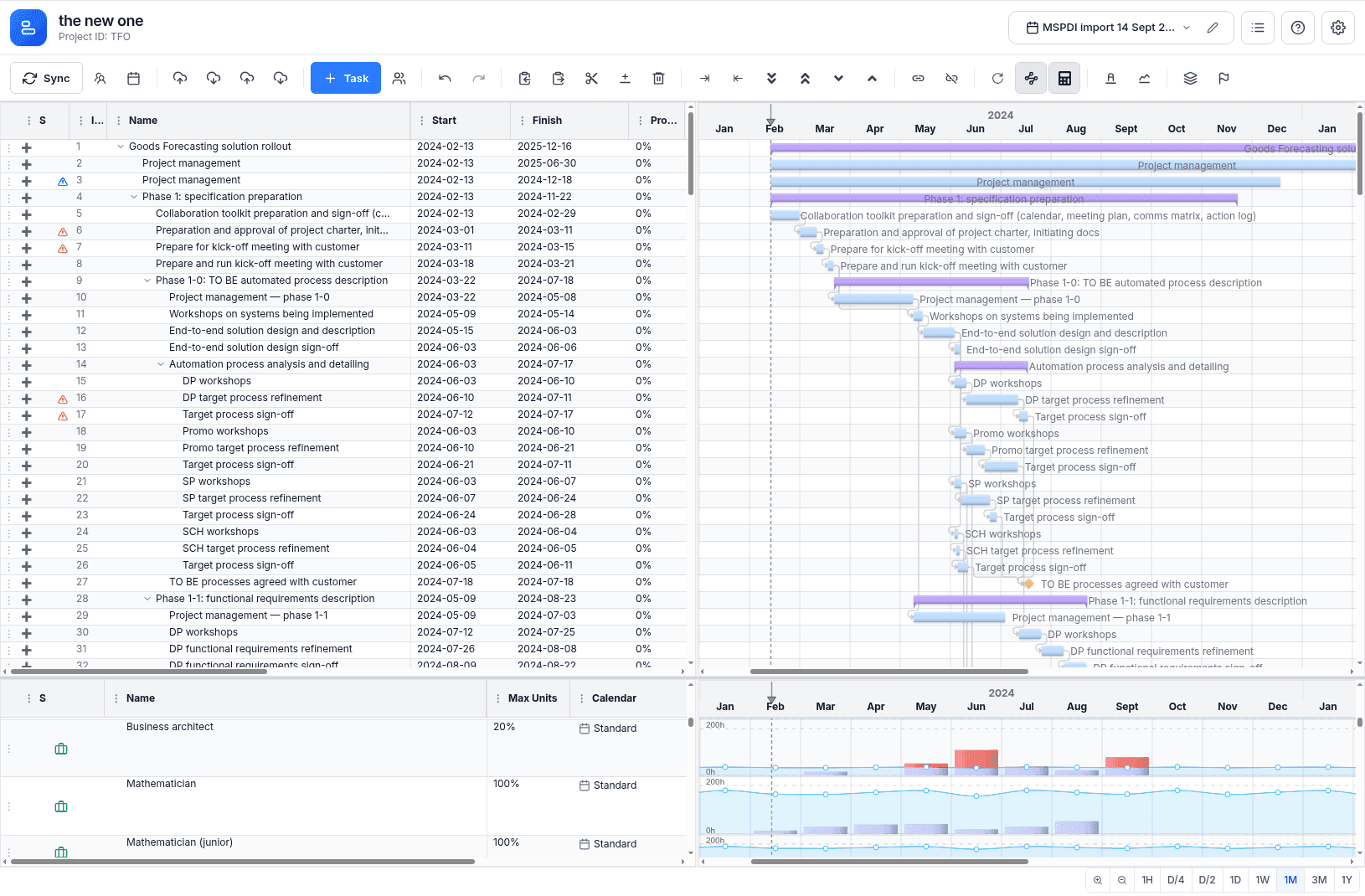
The Split-Pane Intelligence
The workspace is divided into two primary panes: the Timeline (Top) and the Resource View (Bottom). These panes are not just separate views; they are bi-directionally filtered.
1. Top - Bottom Filtering
When you select one or more tasks in the Timeline (top pane), the Resource View (bottom pane) automatically filters to show only the resources allocated to those specific tasks. This allows you to instantly see who is working on the critical path without searching through your entire organization.
2. Bottom - Top Filtering (Team Mode)
By switching the resource view to Team Mode, you can select specific resources or teams. The Timeline (top pane) will then filter to show only the tasks assigned to those selected resources. This is invaluable for conducting resource reviews or checking a specific person's load.
The Toolbar Masterclass
The top menu contains the primary controls for shaping your project.
Structural Controls
- Indent / Outdent: Quickly build your task hierarchy. Indenting a task makes it a sub-task of the row above it.
- Link / Break: Create dependencies between tasks. Linking two tasks ensures that the second cannot start until the first is finished (or as defined by the dependency type).
- Expand / Collapse: Toggle the visibility of sub-task trees to focus on high-level milestones or dive into granular details.
Analysis & View Toggles
- Baseline Toggle: Overlay your original commitment (Baseline) against the current live schedule to visualize drift.
- Actuals Toggle: Show posted Jira worklogs as "Actual Work" bars on the timeline.
- Grouping Toggles: Group your tasks by Sprint or Release to align your professional schedule with your agile delivery cycles.
Navigation & High-Efficiency Controls
To maintain a professional flow, MSP Planner supports advanced navigation and interaction patterns:
The Interactive Gantt
The Gantt chart is more than a visualization; it is a direct input for your schedule:
- Preserving Duration: Dragging the center of a task bar moves the entire task while keeping its duration constant.
- Resizing: Dragging the edges of a bar extends or shrinks the task duration.
- Deterministic Placements: In Auto-scheduling mode, dragging a bar's edge automatically creates a constraint (SNET/FNLT) so that your manual placement "sticks" during the next engine recalculation.
Resource Intelligence
The Resource View provides a data-driven look at your team's capacity:
- The Histogram: Use the visual bars to detect over-allocation. Red zones indicate that a resource's assigned work exceeds their available capacity.
- Origin Icons: Identify resource types at a glance: Amber (Organization/Directory), Violet (Actuals-Reconciled), and Emerald (Project-local).
- Direct Allocation: Assign resources to tasks directly through the assignment grid in the bottom pane.
Pro Selection Tips
High-velocity editing is powered by a professional selection model:
- Row Selection (The Triple-Dot): Click the triple-dot symbol at the start of a row to select the entire task. This is required for row-level operations like Copy, Paste, and Indent.
- Cell Selection: Click within a cell to edit a specific field. Use this for rapid "bulk-filling" of values across multiple selected cells.
General Controls
- Split-Pane Sync: Scrolling the table in the top pane automatically scrolls the Gantt chart, and vice versa.
- Keyboard-First Editing: Use full keyboard support for copy, paste, cut, delete, and indent/outdent operations.
- Explicit Synchronization: Use the synchronization toolbar to manually "Push" schedule updates to Jira or "Pull" host changes into your plan.