Resource Pool Management
A professional schedule is only as good as the resources assigned to it. MSP Planner uses a sophisticated resource pool model that allows you to combine your organization's official directory with temporary, project-specific resources.
System vs. Project Resources
To maintain data integrity while allowing flexibility, MSP Planner distinguishes between where a resource originates.
1. System (Corporate) Resources
System resources are linked directly to your organization's identity provider (e.g., Jira User accounts, corporate directory).
- Source of Truth: Their master data—such as full name and email—is owned by the system. This prevents inconsistent naming across different schedules.
- Automated Actuals: Because they are linked to real users, MSP Planner can automatically pull their posted Jira worklogs to show "Actual Work" vs. "Planned Work."
- Governance: System resource details are read-only within the timeline to ensure consistency with the corporate directory.
2. Project Resources
Project resources are created locally within the specific schedule.
- Use Case: Use these for external consultants, vendors, or "TBD" roles (e.g., "External QA Auditor") that don't exist in your corporate directory.
- Flexibility: You have full control over the name and properties of project resources.
- Local Scope: These resources exist only within the current schedule and are not visible to other projects.
Managing the Pool
Adding Resources
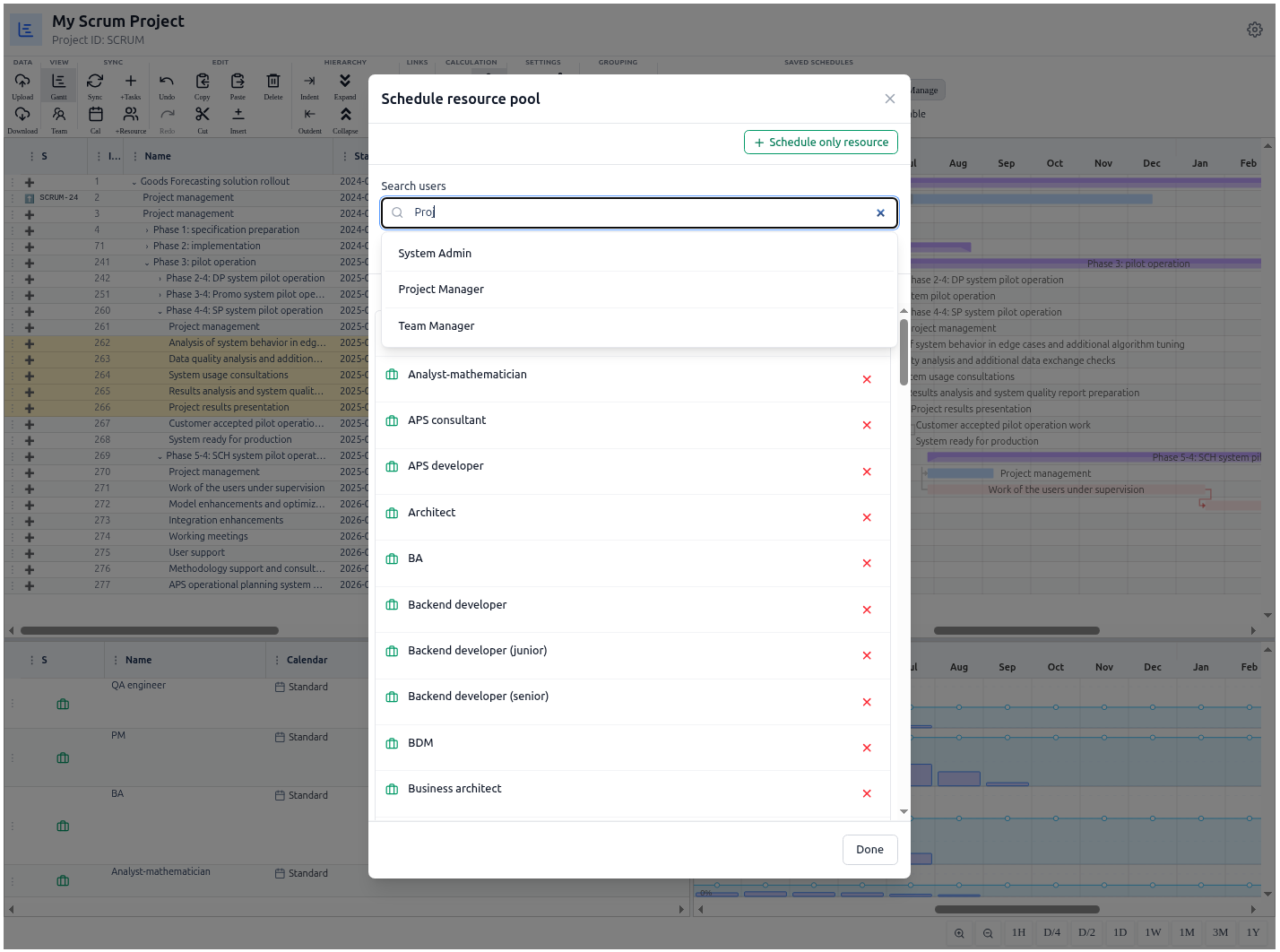
You can populate your pool via the Add Resources control in the toolbar:
- Search and Attach: Find and attach a System Resource from your organization's directory.
- Inline Creation: Quickly create a Project Resource by typing a name and clicking "Create."
Organizing the Resource View
The resource pane is designed for rapid review and organization:
- Drag-and-Drop Reordering: You can drag resource rows up or down to group them by team, seniority, or specialty.
- Filtering by Task: Select tasks in the top pane to instantly filter the resource pool to show only the people assigned to those specific tasks.
- Team Mode: Switch the view to "Team Mode" to select specific resources and see exactly which tasks in the project they are responsible for.
Resource Assignments
Assigning a resource to a task is more than just a link; it's a commitment of capacity.
- The Assignment Grid: In the bottom pane, you can assign resources to tasks by interacting with the grid.
- Allocation Units: You can specify the Units (percentage of time) a resource is dedicated to a task. For example, setting a resource to 50% means they spend half of their available working hours on that specific activity.
- Symmetry: When you assign a resource in the grid, the task's work and duration are automatically recalculated based on the selected Scheduling Mode (Fixed Work, Duration, or Units).