Application setup, Administration and configuration
This section describes how to install the application, what Jira permissions it needs, how to perform initial setup, and how to configure delegated admins, system settings, and resource data.
Resource Management for Jira on the Atlassian Marketplace — install, try free, and see pricing and reviews.
Jira application permissions (Jira deployment)
When the application is deployed on Jira (e.g. as a Forge app), it requests the following Jira permissions so it can function properly:
| Permission | Purpose |
|---|---|
| read:jira-user | Read Jira users (e.g. for user sync, resource records, assignees, managers). |
| read:jira-work | Read issues, projects, worklogs, and related work data (for resource requests, timesheets, worklog sync). |
| write:jira-work | Create and update issues, worklogs, and work data (for one-click task creation from resource requests, worklog create/update/delete, approval properties). |
| storage:app | Store application data (Forge storage / app data). |
| manage:jira-project | Manage project configuration (needed for project access and issue operations). |
The app also requests content permission (styles: unsafe-inline) for inline styles required by the UI. These scopes are declared in the app manifest; Jira prompts the installer to approve them when installing the app.
Installing the application
The Resource Management for Jira application can be installed in two ways:
- From the Atlassian Marketplace — The app is listed on the Atlassian Marketplace. A Jira administrator can find and install it from within Jira (see How to install from the Marketplace below).
- Via a link from Sales or a partner — You may receive a direct installation link (e.g. from your account manager or a solution partner). That link leads to an install flow that does not require searching the Marketplace (see Installing via a direct link below).
In both cases, only a Jira site administrator (a user with the Administer Jira global permission) can complete the installation. For details on who can install apps and how Jira presents the install flow, see Atlassian’s documentation: Integrate apps and Installing and managing app access.
Installing from the Atlassian Marketplace
- Log in to your Jira site as a user with Administer Jira (site admin).
- In Jira, go to Apps (or Settings → Apps) and choose Find new apps or Explore more apps (wording may vary by Jira version). This opens the Marketplace or the app discovery experience.
- Search for Resource Management for Jira (or the name provided by your vendor).
- Click Install (or Get it now / Free trial as applicable). Jira may prompt you to log in at my.atlassian.com if you are not already logged in.
- Approve the permissions requested by the app (see Jira application permissions above).
- Wait for the installation to complete. The app then appears in your Jira app list and in the application navigator (or as configured by your Jira admin).
Reference: Integrate apps — Jira Cloud administration.
Installing via a direct link
- Open the installation link you received (e.g. from Sales or a partner). The link points to an Atlassian/Forge install page for the app.
- Select your Jira site (or log in to Atlassian if prompted).
- Confirm installation. Only a Jira site administrator can complete the install; if you are not an admin, the flow may ask you to contact your Jira administrator.
- Approve the permissions requested by the app.
- Wait for the installation to complete.
Reference: Installing and managing app access.
First login and initialization
Once the app is installed, a Jira administrator must log in to the application first. The first admin login triggers the migration/initialization procedure: the application creates the required database structures (e.g. Forge SQL tables) and an empty Corporate team. If no admin logs in first, the app is not fully initialized and other users may see errors or an incorrect setup.
After initialization, the admin can configure delegated admins, system settings, and then sync users from Jira to create resource records (see Resource management below).
Configuration overview
The Configuration area (gear icon in the app) is available only to Instance Admins and Resource Management for Jira App Admins. It is organized into tabs:
| Tab | Purpose |
|---|---|
| Application settings | Enable or disable app-wide features (resource requests, worklogs, approvals, overtime, availability, timesheets, invoice, task creation, notifications). |
| Notification settings | Configure which events send Jira notifications (worklogs, resource requests, availability). Shown only when Enable notifications is on. |
| Roles | Define and order team roles (e.g. Developer, QA). Used in resource request views and confirmation modal. |
| Seniority Levels | Define and order seniority levels. Used in resource request views and confirmation modal. |
| Priorities | Define request priorities (name and color). Used when creating/editing resource requests and in the confirmation modal. |
| Users and Roles | Assign Resource Management for Jira App Admins (delegated admins). Typically used to grant HR or resource managers the ability to manage teams structure and calendars without Jira site admin. |
| Worklogs Sync | Configure worklog sync cadence, manual sync, and retention policy. |
| Directory sync | User Directory sync with external IAM (e.g. Azure AD): inbound web trigger, API tokens, validate/apply payloads, and script connection details. A game changer for enterprise HR — teams are archived, not deleted, so resource requests stay valid. |
| Workforce inbound sync | Inbound calendar catalog, availability, rates, and resource calendar overrides from external systems (e.g. Microsoft Outlook / Graph, HRIS, master spreadsheets): separate enable flags per feed, one shared API token, four web triggers, validate/apply payloads, and operator scripts. When enabled, the matching UI surface becomes read-only. |
The following sections describe each tab in more detail.
Application settings tab
Organization-level feature toggles. When you change a setting, it is saved immediately and applies across the app.
| Setting | When enabled | When disabled |
|---|---|---|
| Enable resource requests (also enables project timesheets view) | The Requests tab is visible for Admin / Team Manager / Project Manager / Requester, and the Project view inside Timesheets is available for those roles. Viewers never get Requests. | The Requests tab is hidden, and the Timesheets Project view is hidden. |
| Enable worklogs management | The Worklogs tab is visible; users can create and edit worklogs. | The Worklogs tab is hidden. |
| Enable worklogs approval | Worklog approval workflow is on; Project Managers (and Admins) can approve or reject worklogs from the Timesheets view. Requesters cannot approve worklogs. | Worklog approval is off; worklogs are considered accepted by default or the approval dialog is read-only. |
| Enable overtime tracking | “Claim overtime” is shown on worklogs; overtime appears in timesheets and invoice options. | “Claim overtime” and overtime options are hidden. |
| Enable availability management | The Availability self-service tab is visible. | The Availability tab is hidden. |
| Enable timesheets | The Timesheets tab is visible for roles that have Timesheets access (including Requesters in Project view). | The Timesheets tab is hidden. |
| Let viewers see their timesheets | Pure Viewers get Timesheets in Team view for their own hours only (no Project view, no approvals). Default on. Does not control Requester / PM / TM / Admin Timesheets. | Viewers do not see the Timesheets tab. |
| Enable analytics | The Analytics tab is visible for supported roles (including Requesters in Project mode). | The Analytics tab is hidden. |
| Let viewers see their analytics | Pure Viewers get Analytics self-scope (own capacity, filled allocations, actuals; Requested allocation hidden). Default on. Does not control Requester / PM / TM / Admin Analytics. | Viewers do not see the Analytics tab. |
| Enable invoice generation | The Download invoice action and dialog are available from Timesheets. | Download invoice is hidden. |
| Enable task creation from resource request | The Task button is shown on accepted resource requests (one-click Jira task creation). | The Task button is hidden. |
| Enable notifications | Notifications can be sent; the Notification settings tab is visible. | Notifications are not sent; the Notification settings tab is hidden. |
Notification settings tab
Visible only when Enable notifications is on in Application settings. Configure which events trigger Jira (or platform) notifications.
- Default notification issue (Jira only) — Optional Jira issue key used when sending notifications that are not tied to a specific issue (e.g. some availability or request events). If unset, those notifications may be skipped.
- Worklogs — Send when worklog is approved; send when worklog is rejected.
- Resource requests — Send when request is submitted to the team; sent for PM review; accepted; rejected; closed; cancelled.
- Availability requests — Send when availability request is created; send when availability request is approved or rejected.
Recipients are determined by the app (e.g. request author, worklog author, team managers by RBS). See the app’s notification implementation for exact routing.
Roles, Seniority Levels, and Priorities (lookup data)
These tabs define lookup data used in resource planning:
- Roles — Team roles (e.g. Developer, QA, Designer). You can add, remove, and reorder them (drag-and-drop). They appear in Resource request views and in the Resource request confirmation modal when assigning or viewing resources (e.g. role per resource).
- Seniority Levels — Seniority levels (e.g. Junior, Mid, Senior). Same add/remove/reorder behavior. Used in Resource request views and in the confirmation modal (e.g. seniority per resource).
- Priorities — Request priorities with name and color. Used when creating or editing a resource request (priority field) and in the confirmation modal. Project Managers and Requesters choose a priority so Team Managers can triage by importance.
Delegated admins (Users and Roles tab)
Delegated admins (Resource Management for Jira App Admins) are users who have full access within the Resource Management app (teams, resources, calendars, configuration) but are not Jira site administrators. They are typically HR or resource managers who need to manage the organization structure, team leads, and calendars without having Jira Administer permission.
Where to manage them
Only a Jira Instance Admin can add or remove delegated admins. In the app, go to Configuration (gear icon) and open the Users and Roles tab.
Key controls on the Users and Roles tab
- Resource Management for Jira App Admins (Jira) — Section that lists the current delegated admin accounts.
- Add admin — Opens a search dropdown to find Jira users by name. Selecting a user adds them to the delegated admins list. The button is disabled if the adapter does not support delegated admin management or if the current user is not a Jira Instance Admin.
- Delegated admin accounts — List of users who are Resource Management for Jira App Admins. Each row shows the user’s display name (or account ID if the name could not be resolved).
- Remove — Removes that user from the delegated admins list. Only Jira Instance Admins can remove; the list is read-only for others.
- Permission note — The tab shows: Only Jira Instance Admins can add/remove delegated admins.
Delegated admins cannot add or remove other delegated admins; only the Jira Instance Admin can change this list. Typically you assign resource managers or HR so they can manage the organization structure (teams, RBS, managers) and calendars (default calendar, overrides, availability) without needing Jira site admin rights.
Worklogs Sync tab (Jira)
(Jira deployment only.) The Worklogs Sync tab configures how Jira worklogs are mirrored into the app and how long data is kept.
Why worklogs are synced
To enable quick calculations for timesheets and invoices, all Jira worklogs are proxied in a Forge SQL table (task_worklogs). This table is automatically synchronized according to the Sync Cadence you set (hourly, daily, or disabled). The sync process fetches updated and new worklogs from Jira and writes them into the Forge table so the app can aggregate by period, resource, and project without calling Jira on every request.
Sync Cadence and manual sync
- Sync Cadence — Choose Hourly, Daily, or Disabled. When set to Hourly or Daily, the app runs the sync on that schedule (daily sync uses the Daily Sync Start Hour (UTC) you configure). When Disabled, no automatic sync runs.
- Sync Now (Global) — If you need to backfill or resync all existing worklogs from Jira, click Sync Now (Global). This queues a full sync that fetches worklogs from Jira and updates the Forge table. The sync runs asynchronously; the Last Sync Status block updates when it finishes.
Last Sync Status block
After at least one sync has run, the Last Sync Status block shows:
- Last sync run — Date and time of the most recent sync run (whether it succeeded or failed).
- Last successful sync — Date and time of the most recent run that completed successfully.
- Status — success, error, or never (no sync has run yet).
- Sync Results (when available) — Counts for Updated, Deleted, Upserted, Skipped, and Errors for the last run.
Use this to confirm that sync is running and to troubleshoot if status is error or counts look wrong.
Data retention policy (Forge quota)
Forge allocates a limited database size (e.g. 1 GB) per app. To keep the Forge-allocated database within the allowed quota, the app applies a data retention policy: worklogs and other historical records older than the retention window are deleted during sync/cleanup. The admin can set the retention duration manually in the Worklogs Sync tab (e.g. 1, 3, 6, 12, or 24 months, depending on configuration). When the admin changes the retention setting and confirms (via the confirmation dialog), the policy is applied immediately: the retention routine runs and deletes records that no longer fall within the new retention window. Older worklogs and related data are permanently removed from Forge SQL.
If the database exceeds a threshold (e.g. 800 MB), the app may enforce a smaller retention window automatically to stay under the 1 GB limit. In that case the Data retention status block shows the enforced value.
Data retention status block
(Jira only.) The Data retention status block displays:
- Consumed space — Current database usage in MB (and optionally threshold and limit in MB).
- Total rows (approx.) — Approximate number of rows in the affected tables.
- Measured at — When the usage was last measured.
- Enforced retention — If the app has overridden your retention setting to protect storage (e.g. to stay under 1 GB), the enforced retention in months is shown here; otherwise “None”.
Use this to monitor storage and to understand when the app has automatically tightened retention.
Other data retention (Resource Management for Jira config)
The application also uses Resource Management for Jira data retention (dataRetentionMonths), stored in the main Configuration (default 12 months). It applies to:
- Availability periods, resource rates, and resource calendar assignments (JSONB-style data).
- When fetching, the backend only returns periods whose end date (or start date if no end) is on or after the retention threshold (today minus
dataRetentionMonths). Older periods are excluded. - When saving, the backend overwrites the full payload from the frontend, so data beyond the retention boundary is not re-stored.
This is separate from the Worklogs Sync retention policy, which applies specifically to the synced worklog table and Forge storage.
User Directory sync tab (external Active Directory / IAM)
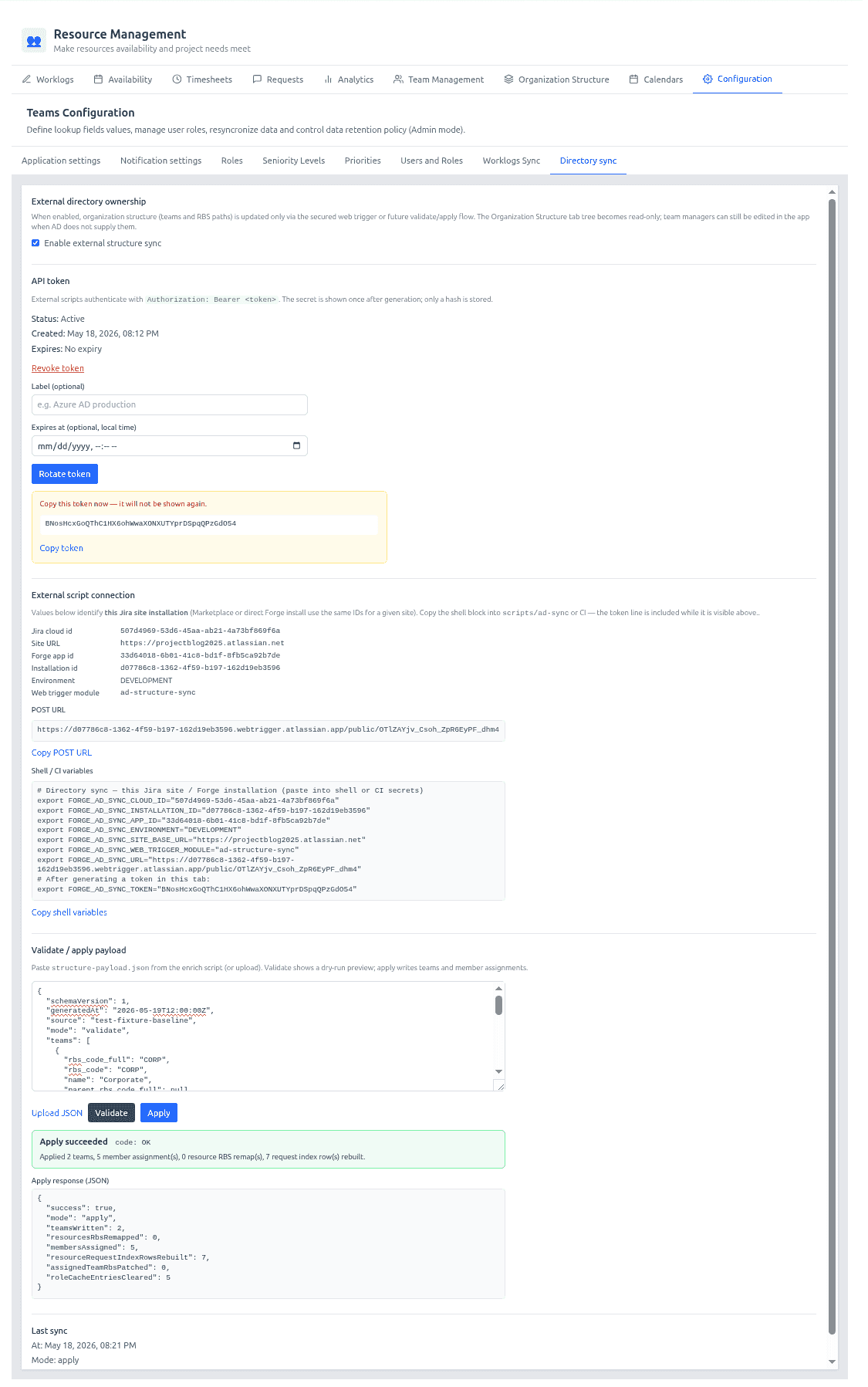
User Directory sync with Azure AD and external IAM is a game changer for enterprise HR: your directory owns the org chart; Jira owns delivery. The Directory sync configuration tab connects Resource Management for Jira to an external user directory (for example Microsoft Entra ID / Azure AD via Microsoft Graph, or any HR/IAM system that can export teams and group membership). It keeps the in-app organization structure (teams, hierarchy, RBS paths, team managers, and member-to-team assignments) aligned with your corporate directory without the Forge app calling AD outbound.
How the AD sync works
Atlassian Forge apps run in a controlled runtime. In production, the app cannot reliably initiate arbitrary outbound HTTPS calls to your AD tenant in the way a standalone integration service can. The supported pattern is therefore:
- Outside Jira — your orchestration (script, Azure Function, cron job, CI pipeline) reads AD/Graph (or exports from another IAM tool).
- Into Jira — that script POSTs a JSON payload to a secured Forge web trigger URL exposed by this app.
- Inside the app — Forge validates the token, previews or applies the structure, updates KVS/SQL, and invalidates role caches.
So directory export, email→Jira accountId resolution, and scheduling live outside the app. The app provides authentication, validation, apply semantics, and audit (lastSync).
Controls on the Directory sync screen
External directory ownership
- Enable external structure sync — When checked, the Organization Structure tab becomes read-only for manual tree edits (admins still manage resources, calendars, and configuration). All structural changes (add/rename/move/archive teams, managers, member RBS assignments from the payload) are expected to come from Validate / Apply or from your automated POST to the web trigger.
- Descriptive text on the tab explains that structure is updated only via the secured web trigger while this option is on.
API token
Used by external scripts as Authorization: Bearer <token>.
| Control | Purpose |
|---|---|
| Status | Shows whether a token exists (e.g. Active), when it was created, and optional expiry. |
| Revoke token | Invalidates the current token immediately; external scripts fail until a new token is generated. |
| Label (optional) | Human-readable note (e.g. Azure AD production) stored with the token metadata. |
| Expires at (optional) | Optional expiry timestamp for the token. |
| Rotate token | Generates a new token; the raw value is shown once in the yellow banner — copy it before leaving the page. |
| Copy token | Copies the newly generated secret to the clipboard. |
Only Jira Instance Admins and Resource Management for Jira App Admins should manage tokens. The hash is stored in app settings; the plaintext is never shown again after rotation.
External script connection
Connection details for the current Jira site and Forge installation (Marketplace and direct installs on the same site share the same installation context):
| Field | Purpose |
|---|---|
| Jira cloud id / Site URL | Identifies the tenant for Jira REST calls in the enrich step. |
| Forge app id / Installation id / Environment | Targets the correct Forge deployment (e.g. development vs production). |
| Web trigger module | Module key (ad-structure-sync) used in the manifest. |
| POST URL | Full HTTPS URL for POST requests (structure payload body). Copy POST URL copies it for scripts. |
| Shell / CI variables | Pre-filled export lines (FORGE_AD_SYNC_URL, FORGE_AD_SYNC_TOKEN, site base URL, cloud id, etc.). Copy shell variables for pipelines. |
Validate / apply payload
Manual testing and one-off applies from the admin UI (same contract as the web trigger):
| Control | Purpose |
|---|---|
| JSON text area | Paste or edit the structure payload (schemaVersion, mode, teams[], options). |
| Upload JSON | Load a payload file from disk (e.g. from your export pipeline). |
| Validate | Runs mode: "validate" — schema + diff preview; no KVS/SQL writes. Use before production apply. |
| Apply | Runs mode: "apply" after confirmation — updates teams, member RBS in SQL, request indexes, role cache. Subject to rate limiting. |
| Status banner | Success or error (e.g. validation errors, rate limit, integration disabled). |
| Apply response (JSON) | Technical result: teams written, members assigned, RBS remaps, index rows rebuilt. |
| Last sync | Timestamp and mode of the last successful apply (lastSync in app settings). |
Payload options (v1):
replaceAll: true— Full snapshot; teams not in the payload are archived, not deleted (see below).preserveCorporateRoot: true— CORP root must remain in the payload.remapResourceRbs: true— When team RBS paths change, updateresources.rbs_code_fulland rebuild related request indexes.
Teams are identified by rbs_code_full (e.g. CORP.Engineering). People are referenced by Jira accountId only in the upload payload (emails are resolved in the external enrich step).
Teams are archived, not deleted
When a team disappears from an AD snapshot, apply sets archived: true on the KVS team row but keeps the internal team id and historical RBS path. This preserves resource requests that still reference that team id. To restore a team, include it again in a later payload with archived: false. Use Show archived on the Organization Structure tab to inspect archived teams.
Resources (SQL): new hires and leavers — not deleted
Resource records live in the Forge SQL resources table (one row per person, keyed by Jira accountId). Directory sync creates, updates, and archives these rows; it never deletes them. Timesheets, resource requests, and worklogs keep stable resource ids.
| Scenario | What to put in the payload | What apply does |
|---|---|---|
| New hire (exists in Jira, may have no resource row yet) | List under the team’s members[] with accountId only (or "archived": false) | Upsert — INSERT … ON DUPLICATE KEY UPDATE sets rbs_code_full to that team, archived = false, display name from Jira. No Update Users run required for that person. |
| Active member (team change) | Same team or another team’s members[] | Updates rbs_code_full / rbs_code to the payload team. |
| Leaver / offboarding | Keep on their last team with "archived": true | Sets resources.archived = true; keeps team RBS for history. Still appears when Show archived is on in Structure. |
| Omitted from payload | Person not listed on any team | No change — not moved to CORP, not archived. |
Important: Omitting someone from AD does not archive them and does not move them to Corporate. Your export/enrich pipeline must emit leavers explicitly, for example:
{
  "accountId": "712020:example-account-id",
  "archived": true
}
When a team RBS path is renamed (remapResourceRbs: true), apply remaps all resources on the old path — including archived = true — so leavers are not left on an obsolete path.
Classic mode (no Directory sync): use Update Users on the Organization Structure tab to bulk-create resource rows for all Jira users (default Corporate RBS). Archive leavers manually in the UI or via Team Management when external sync is off.
Recommended external pipeline (script samples)
Download the example script pack (Python samples, curl helper, token template, and test JSON fixtures):
Download directory sync scripts (ZIP)
Unpack the archive on your orchestration host (Azure Function, CI runner, or admin workstation). Copy tokens.example.sh to .tokens.sh in the same folder as curl.sh and fill in the web trigger URL and Bearer token from Configuration → Directory sync → Shell / CI variables.
Step 1 — Export from directory (emails allowed)
python3 export-ad-teams.example.py --out ad-teams.json
Reads groups/teams from Microsoft Graph (or adapt the script to your IAM export). Output includes manager/member emails and team rbs_code_full / parent_rbs_code_full.
Step 2 — Enrich with Jira accountIds
python3 enrich-jira-ids.example.py \
  --ad-file ad-teams.json \
  --out structure-payload.json \
  --jira-base "https://your-site.atlassian.net" \
  --jira-email [email protected] \
  --jira-token "$JIRA_API_TOKEN"
Calls Jira user search APIs to replace emails with accountId values. The upload file must not contain emails on the wire to the Forge trigger.
Step 3 — Validate, then apply
Copy Shell / CI variables from the Directory sync tab, then:
# Set mode to "validate" first in structure-payload.json
curl -sS -X POST "$FORGE_AD_SYNC_URL" \
  -H "Authorization: Bearer $FORGE_AD_SYNC_TOKEN" \
  -H "Content-Type: application/json" \
  -d @structure-payload.json

# After reviewing preview, set "mode": "apply" and POST again
Or use Validate / Apply in the Configuration UI with the same JSON.
Minimal payload shape (active member + archived leaver on one team):
{
  "schemaVersion": 1,
  "mode": "validate",
  "teams": [
    {
      "rbs_code_full": "CORP.Engineering",
      "rbs_code": "Engineering",
      "name": "Engineering",
      "parent_rbs_code_full": "CORP",
      "archived": false,
      "managers": [{ "accountId": "712020:manager-id" }],
      "members": [
        { "accountId": "712020:new-hire-id" },
        { "accountId": "712020:leaver-id", "archived": true }
      ]
    }
  ],
  "options": {
    "replaceAll": true,
    "preserveCorporateRoot": true,
    "remapResourceRbs": true
  }
}
The enrich script (enrich-jira-ids.example.py) passes through "archived": true from your AD export when present on a member object.
Operational notes
- After apply, reload the Teams app or wait for role-cache refresh so Team Manager scopes match the new tree.
- Apply is rate-limited (counter in Forge KVS); validate is not.
- With external structure sync enabled, manual Save on the organization tree is blocked; use payloads or temporarily disable external sync for exceptional manual fixes.
- Test fixtures in the script pack include steps 06 (new member upsert) and 07 (archive via
members[].archived).
Workforce inbound sync tab (external calendar / HR intake)
Workforce inbound sync lets external systems (Microsoft Outlook / Graph, HRIS, payroll, master spreadsheets) push shared calendar catalog data, approved availability periods, billing rate bands, and per-resource calendar override periods into Resource Management for Jira without the Forge app calling those systems outbound. The pattern matches Directory sync: your orchestration exports data, optionally enriches identities, and POSTs JSON to secured Forge web triggers.
How workforce inbound sync works
Atlassian Forge apps run in a controlled runtime. In production, the app cannot reliably initiate arbitrary outbound HTTPS calls to Outlook or your HR tenant. The supported pattern is therefore:
- Outside Jira — your orchestration (script, Azure Function, cron job, CI pipeline) reads Outlook/Graph, HRIS exports, or internal scheduling data.
- Into Jira — that script POSTs a JSON payload to one or more secured Forge web trigger URLs exposed by this app.
- Inside the app — Forge checks the feed-specific enable flag and Bearer token, validates the payload, previews or applies changes to KVS/SQL, and records
lastCalendarSync,lastAvailabilitySync,lastRatesSync, orlastCalendarOverridesSync.
So export, identity resolution (accountId), and scheduling live outside the app. The app provides authentication, validation, apply semantics, UI read-only gating, and audit metadata.
Four independent workforce feeds — calendar catalog, resource availability, billing rates, and resource calendar overrides — each has its own enable checkbox and web trigger. They share one API token in v1. Any combination of feeds may be enabled. Directory structure sync (externalStructureEnabled) remains a separate flag on the Directory sync tab.
Controls on the Workforce inbound sync screen
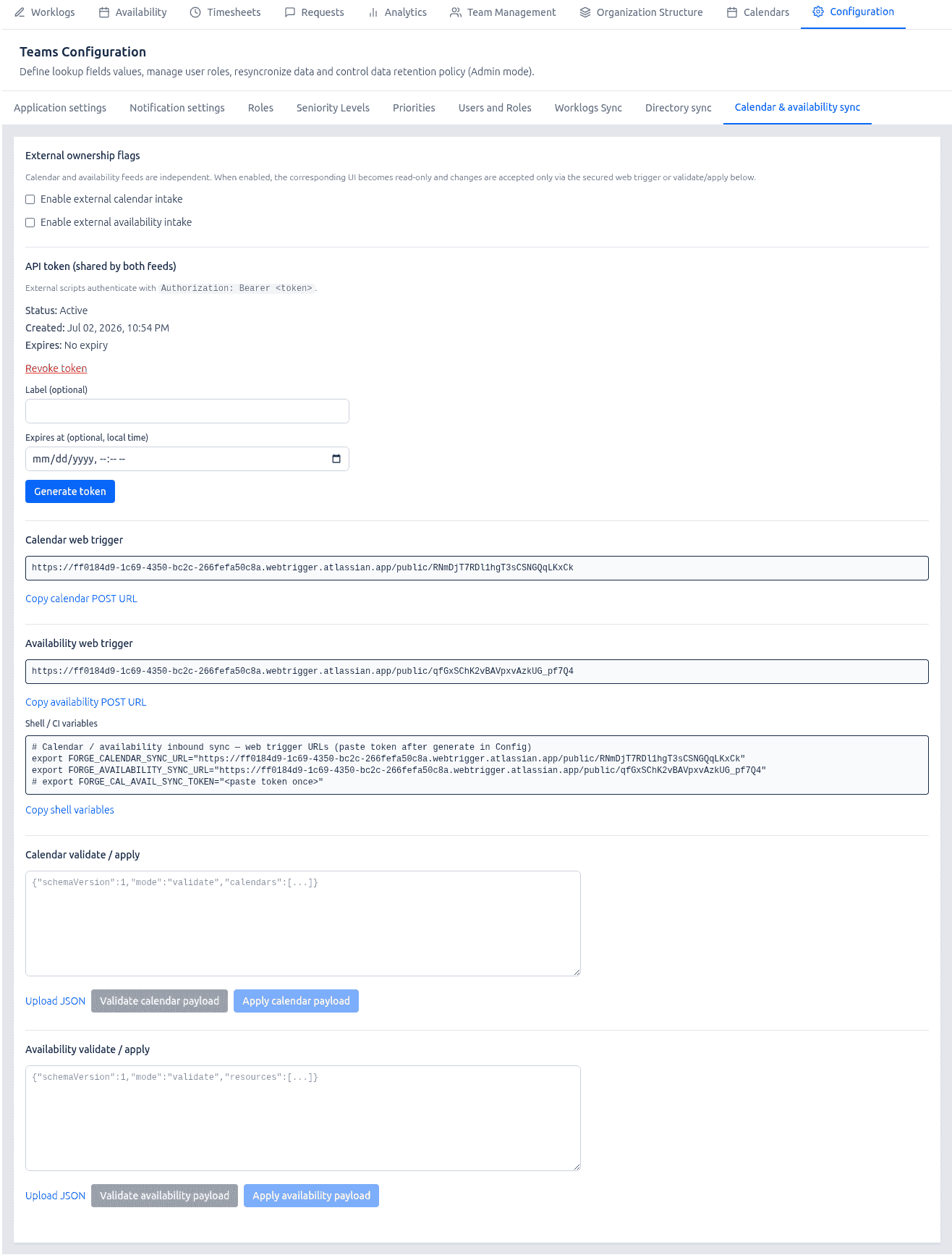
External ownership flags
| Control | When enabled | When disabled |
|---|---|---|
| Enable external calendar intake | Calendar web trigger accepts validate/apply; Calendar Management tab is read-only for all roles. | Manual calendar edits in the UI are allowed; calendar web trigger returns 403 Forbidden (even with a valid token). |
| Enable external availability intake | Availability web trigger accepts validate/apply; Availability tab (self-service) and Team Management → Manage Availability (manager console) are read-only. | Manual availability edits and request workflow are allowed; availability web trigger returns 403 Forbidden. |
| Enable external rates intake | Rates web trigger accepts validate/apply; Team Management → Manage Rates is read-only for all roles. | Manual rate edits in the UI are allowed; rates web trigger returns 403 Forbidden. |
| Enable external calendar overrides intake | Resource-calendar web trigger accepts validate/apply; Team Management → Manage Calendar (override periods) is read-only. | Manual calendar override edits are allowed; resource-calendar web trigger returns 403 Forbidden. |
Descriptive text on the tab explains that each surface is updated only via the secured web trigger or validate/apply flow while the matching checkbox is on.
Banners when a flag is on:
- Calendar Management: Shared calendars are managed by external intake. Use Config → Workforce inbound sync or your integration script to apply changes.
- Availability / manager console: Availability is managed by external intake. Changes must be applied via the integration script or Config → Workforce inbound sync.
- Manage Rates: Resource rates are managed by external intake. Apply changes via Config → Workforce inbound sync or your integration script.
- Manage Calendar (overrides): Resource calendar overrides are managed by external intake. Apply changes via Config → Workforce inbound sync or your integration script.
Viewing existing calendars, periods, calendar shading, and capacity calculations remains available (read-only where flagged).
API token (shared by all workforce feeds)
Used by external scripts as Authorization: Bearer <token> or header X-Cal-Avail-Sync-Token: <token>.
| Control | Purpose |
|---|---|
| Status | Whether a token exists (e.g. Active), optional label, created time, optional expiry. |
| Revoke token | Invalidates the current token immediately (affects all workforce feeds). |
| Label (optional) | Human-readable note (e.g. HRIS production). |
| Expires at (optional) | Optional expiry timestamp. |
| Generate token | Creates a new token; the raw value is shown once — copy it before leaving the page. |
| Copy token | Copies the newly generated secret to the clipboard. |
Only Jira Instance Admins and Resource Management for Jira App Admins should manage tokens.
External script connection
| Field | Purpose |
|---|---|
| Calendar POST URL | Full HTTPS URL for calendar catalog payloads (calendar-sync module). |
| Availability POST URL | Full HTTPS URL for availability payloads (availability-sync module). |
| Rates POST URL | Full HTTPS URL for billing rate payloads (rates-sync module). |
| Resource calendar POST URL | Full HTTPS URL for per-resource calendar override payloads (resource-calendar-sync module). |
| Shell / CI variables | Pre-filled export lines (FORGE_CALENDAR_SYNC_URL, FORGE_AVAILABILITY_SYNC_URL, FORGE_RATES_SYNC_URL, FORGE_RESOURCE_CALENDAR_SYNC_URL, FORGE_CAL_AVAIL_SYNC_TOKEN, site URL, cloud id, etc.). Copy shell variables for pipelines. |
Development and production Forge environments use different web trigger URLs and separate app storage — use variables from the environment you are targeting.
Validate / apply payload (per feed)
Manual testing and one-off applies from the admin UI (same JSON contract as the web triggers). Validate and Apply are disabled until the matching external intake checkbox is enabled.
| Control | Purpose |
|---|---|
| JSON text area | Paste or edit a payload (schemaVersion, mode, feed body, options). |
| Upload JSON | Load a payload file from disk. |
| Validate / Apply (per feed) | Runs mode: "validate" or mode: "apply" via admin resolver — schema + diff preview; apply writes to KVS/SQL. Apply is subject to rate limiting. |
| Status banner | Success or error (validation, rate limit, integration disabled). |
| Apply response (JSON) | Technical result: resources matched, periods written, calendars updated, etc. |
| Last sync | Timestamp and summary of the last successful apply per feed. |
Web trigger HTTP responses use Forge static bodies (success, unauthorized, forbidden, validation_error, rate_limited). Detailed validate previews are returned only through the admin UI resolvers, not in the web trigger HTTP body.
Calendar catalog payload (calendar-sync)
Canonical intake format (an Outlook/Graph export script maps into this shape in your orchestrator).
{
  "schemaVersion": 1,
  "mode": "validate",
  "source": "ms-graph-outlook",
  "generatedAt": "2026-07-02T12:00:00Z",
  "calendars": [
    {
      "externalKey": "default",
      "matchBy": "is_default",
      "name": "Default",
      "workingHours": {
        "1": [{ "start": "09:00", "finish": "17:00" }],
        "5": [{ "start": "09:00", "finish": "17:00" }]
      },
      "exceptions": [
        { "date": "2026-12-25", "workingHours": [], "label": "Christmas" }
      ]
    }
  ],
  "options": {
    "replaceWorkingHours": true,
    "mergeExceptions": true,
    "exceptionWindowDays": 365
  }
}
Apply target: shared calendar catalog in Forge KVS (teams:calendars) — same store as Calendar Management.
Matching: matchBy: id | name | is_default | externalKey.
Weekday keys: 1 = Monday … 7 = Sunday (same as Calendar Management). Each value is an array of { "start": "HH:MM", "finish": "HH:MM" } slots.
Exceptions: workingHours: [] = non-working day; non-empty array = custom working hours that day.
Outlook / Graph mapping (export script, not Forge):
| Graph source | Maps to |
|---|---|
mailboxSettings.workingHours | workingHours[1..7] |
Days absent from daysOfWeek | empty array = non-working |
| All-day calendar events | exceptions[] with workingHours: [] or timed slots |
recurrence | Expand to concrete dates before upload |
The default calendar cannot be archived (same rule as manual Calendar Management).
Availability payload (availability-sync)
{
  "schemaVersion": 1,
  "mode": "validate",
  "source": "hris-workday",
  "generatedAt": "2026-07-02T12:00:00Z",
  "resources": [
    {
      "accountId": "712020:example-account-id",
      "availability": [
        {
          "externalId": "hr-leave-991",
          "period_type": "unavailable",
          "start": "2026-08-01",
          "end": "2026-08-14",
          "description": "Annual leave"
        }
      ]
    }
  ],
  "options": {
    "replaceScope": "externalId",
    "retentionMonths": 24
  }
}
Apply target: SQL resources.resource_data.availability_periods (same path as manual availability save).
Rules:
accountIdmust exist in the app'sresourcestable (run Update Users or directory sync first for new hires).- Inbound writes approved periods directly — it does not create availability request workflow rows.
externalIdwithreplaceScope: "externalId"enables idempotent upsert without wiping periods that lack anexternalId.- Overlap validation matches manual availability rules.
Period types include available, unavailable, and rate/calendar assignment types supported by the app; HR leave is typically unavailable with date-only start / end.
Rates payload (rates-sync)
Billing rate bands from HRMS or master spreadsheets. Maps to per-resource rate periods in SQL (resource_data.rate_periods) — the same store as Team Management → Manage Rates.
{
  "schemaVersion": 1,
  "mode": "validate",
  "source": "hrms-master-sheet",
  "generatedAt": "2026-07-09T12:00:00Z",
  "resources": [
    {
      "accountId": "712020:example-account-id",
      "rates": [
        {
          "externalId": "hr-band-2026-q1",
          "start": "2026-01-01",
          "end": null,
          "description": "Senior band A",
          "rates": {
            "standard": 120,
            "overtime": 180,
            "weekend": 150
          }
        }
      ]
    }
  ],
  "options": {
    "replaceScope": "externalId",
    "retentionMonths": 24
  }
}
Rules:
accountIdmust exist in the app'sresourcestable (run Update Users or directory sync first).rates.standard,rates.overtime, andrates.weekendare required numbers ≥ 0.externalIdwithreplaceScope: "externalId"enables idempotent upsert without wiping periods that lack anexternalId.- Rate periods for the same resource must not overlap (inclusive date bounds).
Resource calendar overrides payload (resource-calendar-sync)
Per-resource calendar assignment periods (which shared calendar applies on a date range) — not shared-catalog working hours or exceptions. Maps to SQL resource_data.calendar_assignments — the same store as Team Management → Manage Calendar.
{
  "schemaVersion": 1,
  "mode": "apply",
  "source": "hrms-location-assignments",
  "generatedAt": "2026-07-09T12:00:00Z",
  "resources": [
    {
      "accountId": "712020:example-account-id",
      "calendarOverrides": [
        {
          "externalId": "hr-london-q3",
          "start": "2026-07-01",
          "end": "2026-09-30",
          "calendar_id": 2,
          "description": "London office calendar"
        }
      ]
    }
  ],
  "options": {
    "replaceScope": "externalId",
    "retentionMonths": 24
  }
}
Rules:
calendar_idmust reference an existing calendar in the shared catalog (run calendar-sync first).- Override periods for the same resource must not overlap.
accountIdmust exist inresources.
Authentication and HTTP codes (web triggers)
For each POST:
- App license must be active.
- Matching enable flag must be
true→ else 403{"success":false,"error":"Integration disabled"}. - Bearer token verified against stored hash; optional expiry → else 401 Unauthorized.
- Payload schema and business rules → 400 on validation failure; 200 on accepted validate/apply; 429 when apply rate limit exceeded.
Recommended external pipeline (script samples)
Download the example script packs (Python POST helpers, token templates, and test JSON fixtures):
Calendar & availability:
Download calendar & availability sync scripts (ZIP)
Rates & calendar overrides:
Download resource profile sync scripts (ZIP)
Unpack on your orchestration host. Copy tokens.example.sh to .tokens.sh in each folder and fill in POST URLs and the Bearer token from Configuration → Workforce inbound sync → Shell / CI variables.
Step 1 — Export calendar catalog (outside the app)
Build calendar-payload.json from Outlook/Graph or your source of truth. Map weekday hours and holidays into the canonical calendars[] shape above.
Step 2 — Export availability (outside the app)
Build availability-payload.json from HRIS leave data. Resolve employees to Jira accountId (not email on the wire to Forge).
Step 3 — Validate, then apply (calendar)
# Set mode to "validate" in calendar-payload-minimal.json (or use --mode validate)
python3 post-calendar-sync.py --mode validate

# After reviewing preview in Config UI or logs, apply:
python3 post-calendar-sync.py --mode apply
Step 4 — Validate, then apply (availability)
Replace accountId in the fixture with a real resource on your site:
python3 post-availability-sync.py --mode validate --account-id '712020:your-account-id'
python3 post-availability-sync.py --mode apply --account-id '712020:your-account-id'
Step 5 — Validate, then apply (rates)
python3 post-rates-sync.py --mode validate --account-id '712020:your-account-id'
python3 post-rates-sync.py --mode apply --account-id '712020:your-account-id'
Step 6 — Validate, then apply (resource calendar overrides)
Run calendar catalog sync first, then set a valid calendar_id in the fixture:
python3 post-resource-calendar-sync.py --mode validate --account-id '712020:your-account-id'
python3 post-resource-calendar-sync.py --mode apply --account-id '712020:your-account-id'
Or use Validate / Apply in the Configuration UI with the same JSON.
Smoke tests (auth + toggle checks):
python3 post-calendar-sync.py --test-suite
python3 post-availability-sync.py --test-suite
python3 post-rates-sync.py --test-suite
python3 post-resource-calendar-sync.py --test-suite
With intake disabled, a valid token still receives 403 — this confirms the enable flag is enforced before token verification matters for acceptance.
Operational notes
- Workforce feed toggles are orthogonal to directory structure sync and to each other.
- With external calendar intake on, manual Save in Calendar Management is blocked in the backend; use payloads or temporarily disable external intake for exceptional manual fixes.
- With external availability intake on, self-service requests and manager approve/reject actions are hidden; approved periods come from inbound apply only.
- With external rates intake on, manual Save in Manage Rates is blocked; use the
rates-syncweb trigger or Config validate/apply. - With external calendar overrides intake on, manual Save in Manage Calendar (override periods) is blocked; use the
resource-calendar-syncweb trigger or Config validate/apply. - Apply is rate-limited; validate is not.
- Recommended order for new sites: directory sync or Update Users → calendar-sync (catalog) → availability / rates / calendar-override feeds as needed.
Employee and resource update methods
Enterprise HR typically needs several independent ways to keep Jira-side resource data aligned with the corporate directory and HRMS. None of these methods deletes resource rows — records are archived or superseded by new periods so timesheets, requests, and worklogs keep stable ids.
| Method | Configuration tab | Web trigger / action | What it updates | UI read-only when enabled |
|---|---|---|---|---|
| Update Users | Organization Structure | Button in app UI | Creates/updates resources rows for all Jira users (default Corporate RBS) | — (classic mode) |
| Directory sync | Directory sync | ad-structure-sync | Teams tree (KVS), team managers, member assignments; upserts/archives resources by accountId | Organization Structure Save |
| Calendar catalog sync | Workforce inbound sync | calendar-sync | Shared calendars (teams:calendars) — working hours, exceptions | Calendar Management |
| Availability sync | Workforce inbound sync | availability-sync | Per-resource availability_periods (approved leave, etc.) | Availability + manager console |
| Rates sync | Workforce inbound sync | rates-sync | Per-resource rate_periods (standard / overtime / weekend) | Team Management → Manage Rates |
| Calendar overrides sync | Workforce inbound sync | resource-calendar-sync | Per-resource calendar_assignments (which catalog calendar applies on a date range) | Team Management → Manage Calendar |
Choosing the right method
| HR scenario | Use |
|---|---|
| New hire appears in Jira | Directory sync payload lists them under a team members[], or run Update Users (classic mode) |
| Leaver / offboarding | Directory sync with "archived": true on the member entry (omitting someone does not archive them) |
| Org chart / team moves | Directory sync |
| Outlook holidays / shared working hours | calendar-sync |
| Approved leave / PTO | availability-sync |
| Billing rate band change | rates-sync |
| Assign London vs New York calendar to a resource for Q3 | resource-calendar-sync (after calendars exist from calendar-sync) |
All inbound POST payloads use Jira accountId on the wire (resolve emails in your export/enrich pipeline before upload). All workforce feeds share one Bearer token; each feed still requires its own enable flag.
Resource management
After the app is initialized, resource records (one per Jira user who can be assigned to work) must be created and kept in sync with Jira. This is done from the Organization Structure tab, not automatically in the background.
Initial sync: fetch users from Jira
- Log in as an admin or delegated admin (e.g. HR or resource manager).
- Open the Organization Structure tab.
- Click the Update Users button (in the structure toolbar).
- The application will:
- Fetch Jira users from the Jira instance (in batches).
- Create or update resource records for each user and link them to the Corporate team.
- Set up application data so that permissions and team membership are consistent.
Until this is done, the app has an empty Corporate team and no resource records; other features (e.g. resource requests, timesheets) depend on these records.
Resource records are not automatic
Resource records are not created automatically when new users are added in Jira, and they are not deleted when users leave Jira. This is by design for data consistency: requests, assignments, and history refer to resource IDs; deleting resources would break referential integrity.
Therefore:
- Without Directory sync — Run Update Users periodically so new Jira users get a resource record (default Corporate RBS).
- With Directory sync — New hires appear when the AD payload lists them under a team’s
members[](apply upserts the resource). Leavers should be listed with"archived": trueon the member entry; omitting someone from the payload does not archive them.
In practice, admins or delegated admins (often HR or resource managers) should:
- Classic mode: Click Update Users after new people join Jira (or on a schedule).
- Directory sync mode: Ensure export/enrich scripts pass
archived: truefor leavers on their last team. - Archive resources manually only for one-off fixes when external sync is temporarily disabled.
Summary
| Step | Who | Where | Action |
|---|---|---|---|
| Install app | Jira admin | Atlassian / Forge | Install on Jira instance |
| First login | Jira admin | Any app page | Log in once to run initialization |
| Delegated admins | Jira Instance Admin only | Configuration → Users and Roles | Add/remove Resource Management for Jira App Admins |
| Configuration | Admin or delegated admin | Configuration | Application settings, Notification settings, Roles, Seniority, Priorities, Worklogs Sync, Directory sync, Workforce inbound sync, data retention |
| Directory structure from AD | Admin or delegated admin | Configuration → Directory sync | Enable external sync, rotate token, validate/apply payload (or automate POST to web trigger) |
| Calendars from external intake | Admin or delegated admin | Configuration → Workforce inbound sync | Enable external calendar intake, validate/apply calendar payload (or POST to calendar-sync web trigger) |
| Availability from external intake | Admin or delegated admin | Configuration → Workforce inbound sync | Enable external availability intake, validate/apply availability payload (or POST to availability-sync web trigger) |
| Rates from external intake | Admin or delegated admin | Configuration → Workforce inbound sync | Enable external rates intake, validate/apply rates payload (or POST to rates-sync web trigger) |
| Calendar overrides from external intake | Admin or delegated admin | Configuration → Workforce inbound sync | Enable external calendar overrides intake, validate/apply payload (or POST to resource-calendar-sync web trigger) |
| Create/update resources | Admin or delegated admin | Organization Structure / Configuration | Click Update Users or use Directory sync to synchronize Jira users to resource records |
| Archive leavers | Admin or delegated admin | Team Management / Organization Structure | Archive resources manually or via Directory sync payload (archived: true) |
Need help?
If you have further questions about installing or configuring the app, or if you run into issues during setup, please contact our support team via the Contact form.