Timesheets: Variance Analysis & Labor Compliance
In a professional services or corporate PMO environment, a timesheet is not just a record of hours worked—it is a Performance Metric. When you compare "Actuals" (what was logged) against a "Baseline" (what was promised), you uncover the truth about your project's health.
Resource Management transforms Jira worklogs into a Variance Analysis engine, allowing you to spot over-utilization, under-reporting, and budget leakage in real-time.
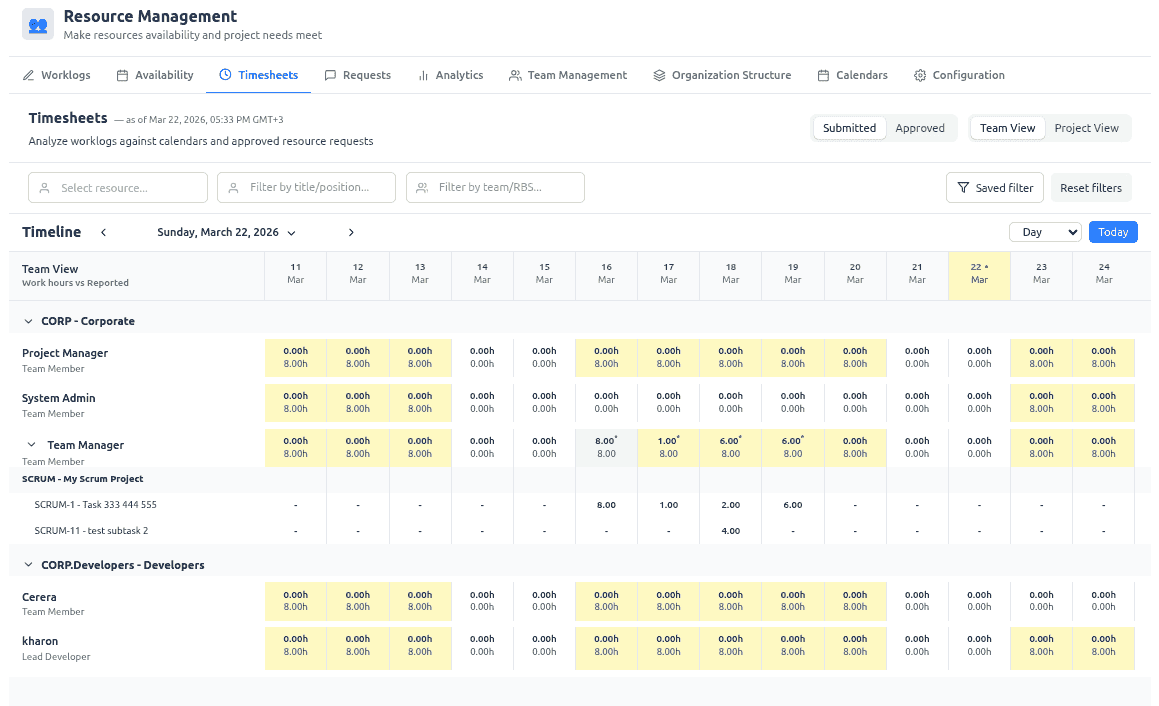
Navigating the Variance Grid
The Timesheets tab is a flexible analysis tool that adapts based on your role and the level of detail you need.
1. Role-Based Perspectives
Access to timesheet data is strictly scoped to ensure privacy and governance:
- Team Managers: Access the Team View to oversee the health and capacity of their managed resources across all projects.
- Project Managers: Access the Project View to monitor labor fulfillment and budget adherence for their managed projects (baseline from all resource requests on those projects). Can approve/reject worklogs when Enable worklogs approval is on.
- Requesters: Access the Project View for projects where they have Request resources. The staffing baseline is built from their own resource requests only; actuals are still shown for those projects. No worklog approval actions. Global Enable timesheets / Enable resource requests control the tab and Project view — the “Let viewers see their timesheets” toggle does not hide Timesheets for requesters; when it is on, they can also use optional Team View for their own hours (default remains Project).
- Admins: Can toggle between both views to provide portfolio-level oversight.
- Viewers: When Let viewers see their timesheets is on (default; Configuration → Application settings), they get Team View for their own hours only — no Project View, and no worklog approval actions. Admins can turn the flag off to hide Timesheets from viewers.
2. Temporal Analysis (View Modes)
Depending on your analysis goal, you can switch the timeline scale:
- Day View: For detailed daily tracking and short-term auditing.
- Week View: The standard for weekly capacity planning and reporting.
- Month View: For high-level monthly summaries and long-term resource allocation reviews.
The Two Pillars of Labor Analysis
Professional labor governance requires two different perspectives: the Resource Perspective (Team View) and the Commitment Perspective (Project View).
1. The Resource Perspective (Team View)
Focus: Capacity Health & Burnout Prevention In Team View, the baseline is the Available Working Time derived from the resource's effective calendar.
- Under-reporting (Yellow): A resource is logging fewer hours than their capacity. This may indicate a lack of work, inefficiency, or "shadow work" not being captured in Jira.
- Over-reporting (Orange/Red): A resource is logging more hours than their calendar allows. This is a critical signal for burnout risk and a failure in capacity planning.
2. The Commitment Perspective (Project View)
Focus: Budget Integrity & Fulfillment In Project View, the baseline is the Allocated Hours from approved Resource Requests.
- Under-fulfillment (Yellow): The project is not receiving the level of effort promised. This is a leading indicator of deadline slippage.
- Budget Leakage (Orange/Red): More hours are being spent than allocated. This indicates scope creep or technical debt that is consuming the project's budget.
The Hierarchy of Labor: Grouping & Drilling
To handle enterprise-scale data, the grid uses a hierarchical grouping system. You can collapse or expand sections using the chevron icons to focus on specific teams or projects.
1. Grouping Logic
The view changes based on your perspective:
- Team Perspective: Grouped as Team $\to$ Member $\to$ Project. This allows you to see how a single person's time is split across multiple project commitments.
- Project Perspective: Grouped as Project $\to$ Member. This highlights who is contributing to a specific project's budget.
2. Drilling Down to the Task Level
Numbers in the grid are aggregates. To find the "why" behind a variance, use the Detail Block:
- Click the expand icon on a person's row.
- An inline block opens, splitting the hours by Project $\to$ Jira Task.
- This allows you to identify exactly which issue is causing an over-run or where time is being "leaked."
The Two Pillars of Labor Analysis
Experienced PMO leads use timesheets to enforce a "Culture of Accountability" through three advanced mechanisms:
🛡️ The Approval Workflow (Compliance)
By enabling Worklog Approvals, you move from "Passive Tracking" to "Active Governance."
The "Submitted vs. Approved" Toggle
In the Timesheets header, you can toggle between two data states:
- Submitted (Default): The grid shows hours as they were claimed by the user (Black text).
- Approved: The grid switches to show only hours validated by a manager (Green text).
The "Asterisk" Warning (∗)
When the approval toggle is active, an asterisk (∗) appears on cells where a gap exists between submitted and approved hours. This acts as a "to-do list" for managers, highlighting pending approvals that are delaying financial reporting.
Audit Trail
The transition from submitted to approved creates a legal record of labor, essential for external audits and client billing.
⚖️ Overtime Governance
Overtime is often a "hidden" cost that kills project margins. Resource Management isolates overtime in purple indicators, allowing you to see exactly where "Hero Culture" is replacing sustainable planning. If you see consistent purple markers on a specific project, you have a staffing failure, not a performance success.
📉 The "Invoicing Truth"
The Download Invoice feature transforms raw Jira data into a financial document. By integrating Jira Saved Filters, you can isolate specific workstreams (e.g., "Development" vs. "Consulting") to generate precise, audit-ready billing reports that map directly to the project's financial baselines.
Operational Guide: Using the Variance Grid
The grid is a heatmap of project health. Instead of reading numbers, look for Color Patterns:
| Color | Meaning | Management Action |
|---|---|---|
| Green | Balanced | Maintain current allocation. |
| Yellow | Under-utilized | Investigate if the resource is blocked or if the task was overestimated. |
| Orange/Red | Over-loaded | Trigger an immediate "Resource Rebalance" or adjust the project deadline. |
| Purple | Overtime | Analyze the cause of the surge. Is it a one-time spike or a systemic under-estimation? |
Pro Tip: The "Asterisk" Warning
When the Submitted vs. Approved switch is active, an asterisk (∗) appears on cells where a gap exists. This is your "To-Do" list for the end of the week: any cell with an asterisk represents a pending decision that is delaying your financial reporting.
Summary for PMOs
| Analysis Type | Baseline Used | Primary Goal | Business Outcome |
|---|---|---|---|
| Team View | Effective Calendar | Resource Sustainability | Prevent Burnout & Churn |
| Project View | Approved Requests | Budget Adherence | Prevent Cost Overruns |
| Approval Flow | Managerial Review | Labor Compliance | Audit-Ready Billing |
Related guide: Timesheets in Jira — turning worklogs into variance analysis, approvals, and invoices.